When you search for a product on Google, you often see product photos with price and shop name at the top and in the Shopping tab. Many people do not know that appearing there can be free: you just need to give Google a file with your catalogue, the so-called feed, through Google Merchant Center.
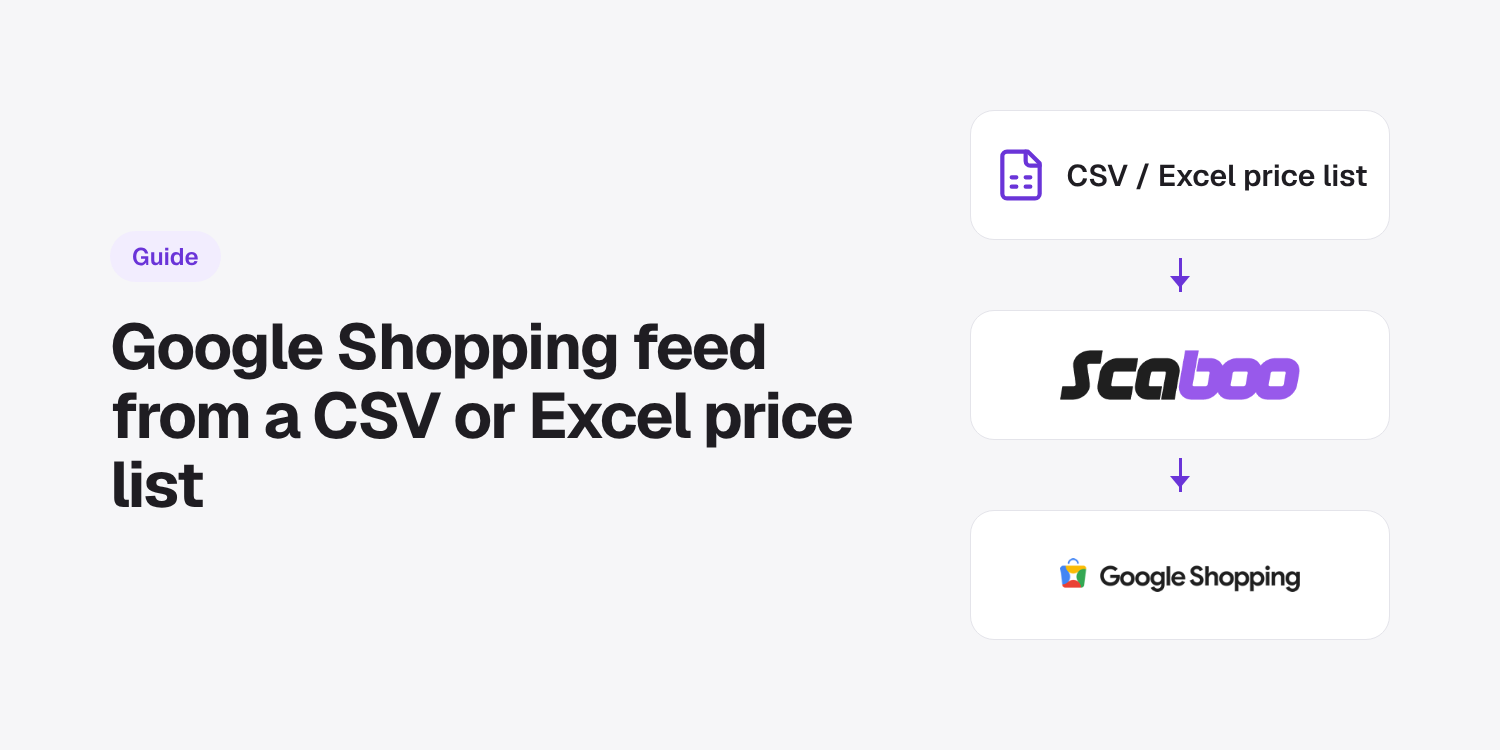
If your products come from a supplier's price list, in CSV or Excel, the whole job is turning that list into the file Google expects, and keeping it always up to date. Let's see how.
What you need before you start
- An online store where the products can really be bought: every product in the feed must lead to its page, with the same price and the same availability.
- A Google Merchant Center account, free, with the site verified.
- Shipping costs set in Merchant Center: without them products do not appear in the free listings.
- Clearly visible terms of sale, returns and contact pages in the store: Google checks them.
The fields that cannot be missing
The feed is a table: one row per product and one column for each piece of information. Google asks for at least these:
- id: a unique code that never changes (usually the product code);
- title and description: the product name and description;
- link: the address of the product page in your store;
- image_link: the address of the main photo;
- price and availability: price including VAT and availability (in stock, out of stock, on order);
- brand and gtin (the EAN): Google uses them to match the product to searches;
- mpn, the manufacturer's code, when there is no EAN;
- condition: new, used or refurbished.
The supplier's price list usually already has code, name, description, purchase price, quantity, brand and EAN. What is missing is the link to the page in your store and your selling price: that is why the price list alone is not enough, it first has to become your store's catalogue.
The mistakes that get products rejected
- Different price between feed and product page: the most common reason for suspension.
- Sold-out products marked as in stock.
- Photos with text, overlaid logos, borders or placeholder images.
- Wrong or invented EANs: better leave them empty and give the manufacturer's code.
- Titles that are too generic, such as "Men's shoe": Google does not know which searches to match them to.
The title is the most important part
In the feed the title counts more than everything else: Google uses it to decide which searches to show the product for. A simple rule: brand, product type and main feature in the first words, then colour, size or capacity. For example "Bosch 18V cordless drill with 2 batteries" instead of "Professional drill offer".
If the supplier's titles are poor, they can all be rewritten with rules or with artificial intelligence, without touching them one by one.
Keeping the feed up to date
A feed uploaded once and then forgotten soon stops working: supplier prices change, items run out, new ones arrive. The right way is to give Google the address of the file instead of the file itself: in Merchant Center this is called a scheduled fetch, and Google downloads the file by itself every day. The file, in turn, must be regenerated every time the price list changes.
How Scaboo does it
With Scaboo the step from the supplier's price list to Google is an automatic flow:
- it reads the price list from a CSV file, FTP or web address and completes it with artificial intelligence (descriptions, categories, translations);
- it calculates selling prices with your rules and publishes the products in your online store, domain included;
- it generates the file for Google Merchant Center in Google's format, with code, title, description, link, photo, price, availability, brand, EAN and manufacturer code, and regenerates it by itself every hour;
- from the same catalogue it also prepares the files for other price comparison sites, such as Trovaprezzi and Idealo.
In Merchant Center you only paste the file address once. You will find the plans in the pricing section, or write to us for a demo.