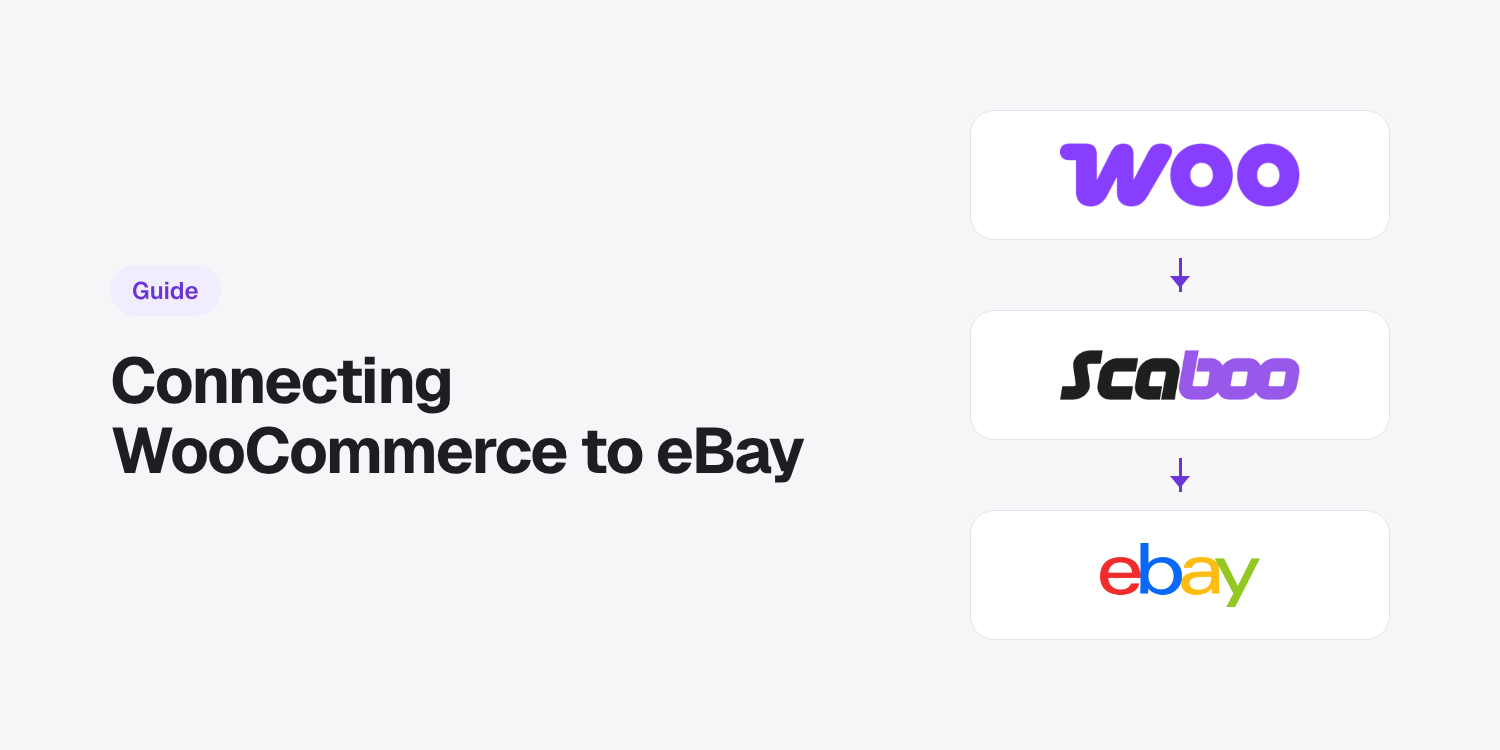
Anyone with a WordPress store running WooCommerce sooner or later thinks about eBay: there are customers there looking for exactly that kind of product, and the catalogue is already on the site. The problem is that eBay does not read your site by itself: every product has to become a listing, with its category and item specifics, and then it has to be kept up to date.
In this guide we look at how to connect WooCommerce to eBay in an orderly way: what to fix on the site first, how to bring the products to eBay and how to handle stock and orders without doing the work twice.
1. Tidy up your products in WooCommerce
The connection only works well if the starting data is clean. First of all, check three things on the site:
- every product has a unique SKU: it is the code that identifies the product on every channel;
- stock management is enabled on the products, so stock is a real number and not just "in stock";
- where you have it, the EAN code is filled in: eBay uses it to recognise the item in many categories.
If you sell products with sizes and colours (WooCommerce variable products), keep it in mind from the start: in Scaboo WooCommerce variations do not carry over, so write to us before connecting that kind of catalogue.
2. Create the keys for the connection
Reading products from the site needs dedicated access, without giving anyone your WordPress password. In WooCommerce go to Settings > Advanced > REST API and create a key with read and write permissions. You get two codes (key and secret) that are used only for this connection and that you can revoke whenever you want.
3. Connect your eBay account
On the eBay side there is no need to share your password either: you use the access authorised by eBay. The eBay page opens, you sign in with your account and confirm. The shipping, payment and return policies and the place your goods ship from apply to all listings, so it is worth deciding them once, at the start.
4. Choose which products to send to eBay
Not all of the site's catalogue has to go on eBay. It makes sense to leave out products with few units, those whose margin cannot absorb the eBay fee and those in categories where eBay asks for special requirements. With filters (category, brand, price, quantity) you choose once, and the selection updates when the products change.
The price can also differ from the site's: on eBay you pay a fee on what you sell, and a small markup calculated with a rule often makes sense, rather than one typed by hand product by product.
5. Fill in listings the way eBay wants them
On eBay every product sits in a category and has its item specifics: brand, model, colour, compatibility. Customers use search filters a lot, and a listing with its item specifics filled in shows up in many more searches. The title should contain brand, model and main feature, without words like "SALE". The best photos are on a light background, with no text on top.
6. Keep stock and orders under control
When the same product is on sale on two channels, the risk is selling an item you no longer have. That is why listing quantities should follow a single catalogue, updated often, and a small safety stock helps: when only a few pieces are left, it is better to set the listing to zero.
Orders also belong in one place: if the site's orders and eBay's sit in two different dashboards, every day you copy data by hand for shipping and invoices. That is the advantage of multichannel selling done properly.
How Scaboo does it
With Scaboo the connection becomes an automatic flow:
- it connects WooCommerce as a source and imports the products published on the site into the catalogue;
- it connects eBay with authorised access and prepares the shipping, payment and return policies;
- it publishes the chosen products as fixed-price listings, with the item specifics eBay asks for in their category, and quantities follow the catalogue;
- it brings eBay and website orders into the single order list, with the customer's details (including tax code or VAT number, when given), from where shipping and invoices start.
WooCommerce can also be a destination: if your products come from a supplier's price list, Scaboo creates and updates them on the site and on eBay together. We cover this in the guide on how to sell a supplier's products on eBay. You will find the plans in the pricing section, or write to us for a demo.